
Support & QA
Region → clipboard → private upload; screenshots in seconds.
Windows · Power users · Open source
Get more from ShareX—the free, open-source screenshot and screen recording tool trusted for years by creators, developers, and support teams. Feature summaries, workflow ideas, community-style lessons, and fixes for common problems.
Interface strip · local assets
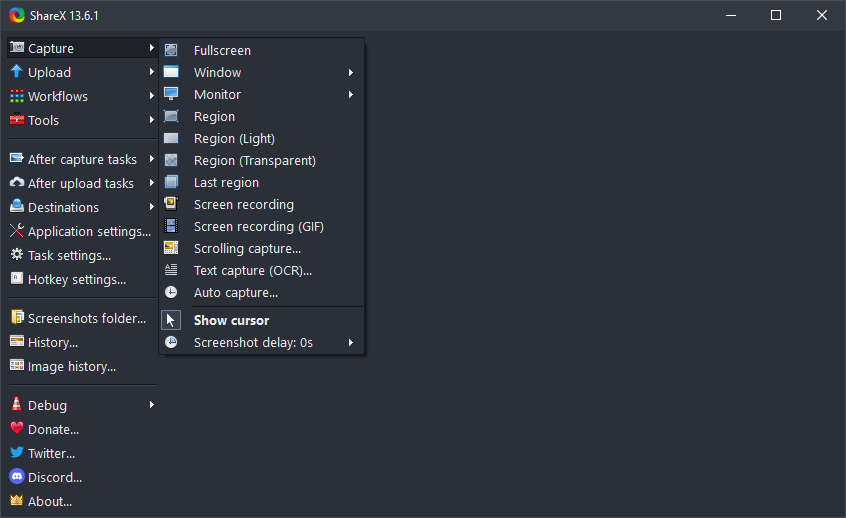 Capture menu
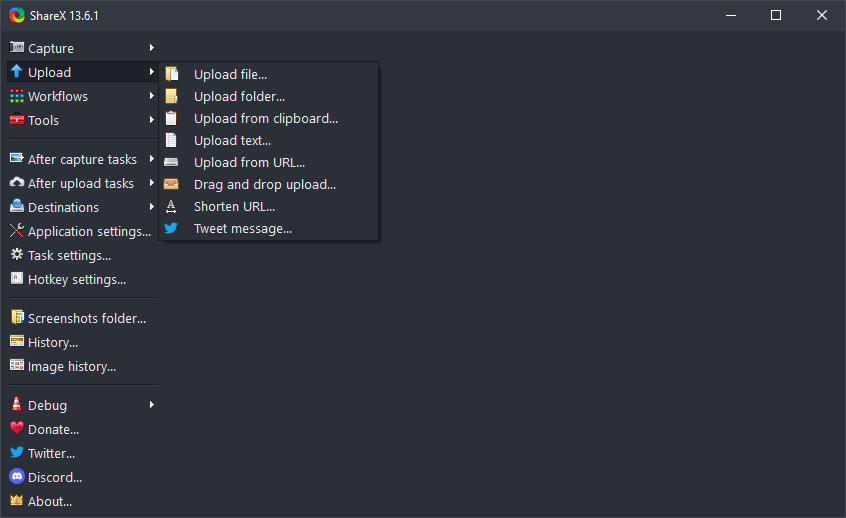 Upload menu
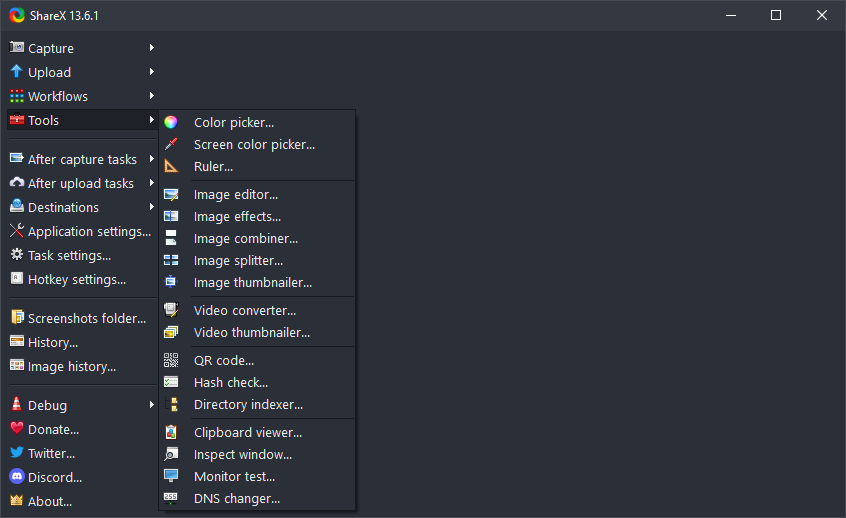 Tools menu
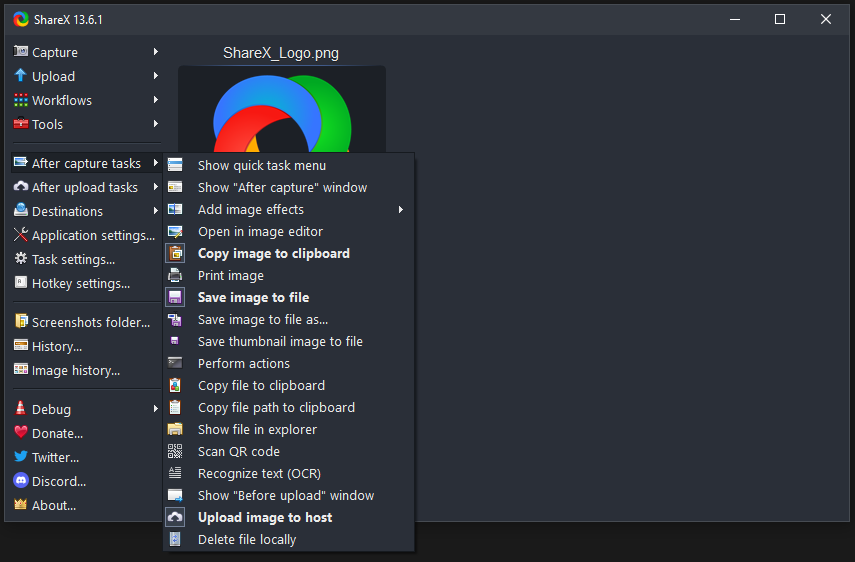 After capture
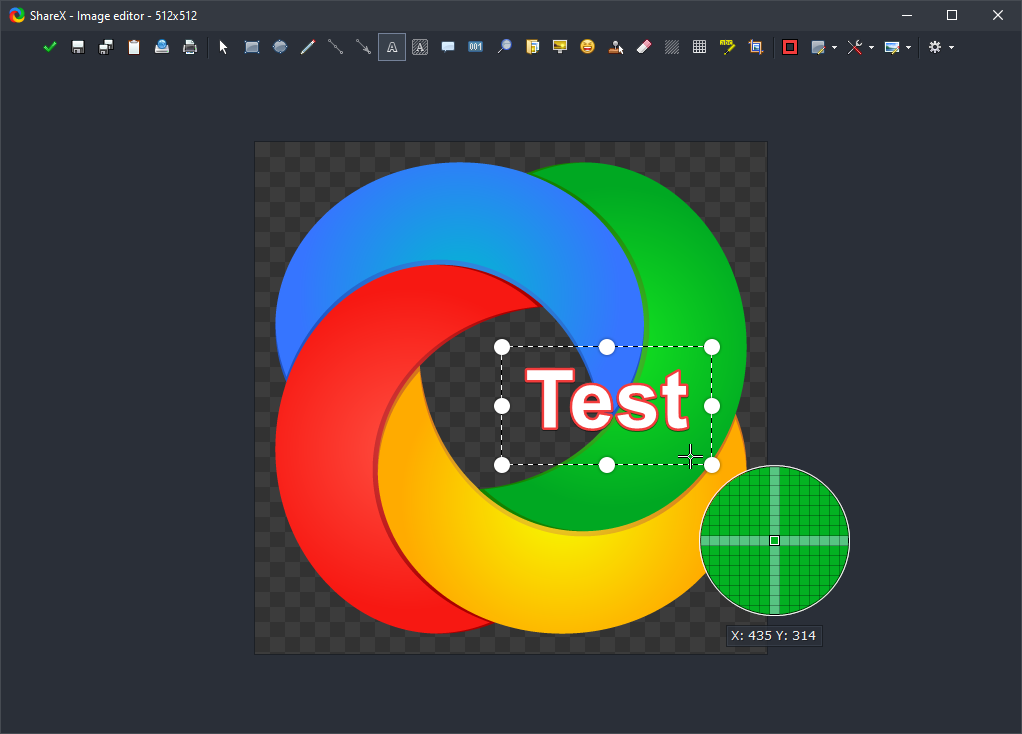 Image editor
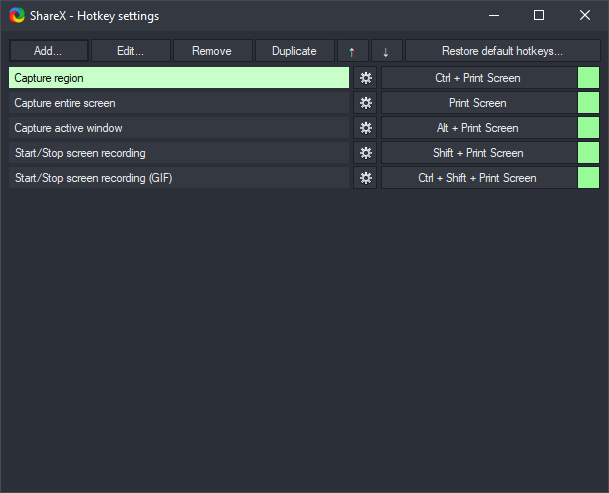 Hotkeys
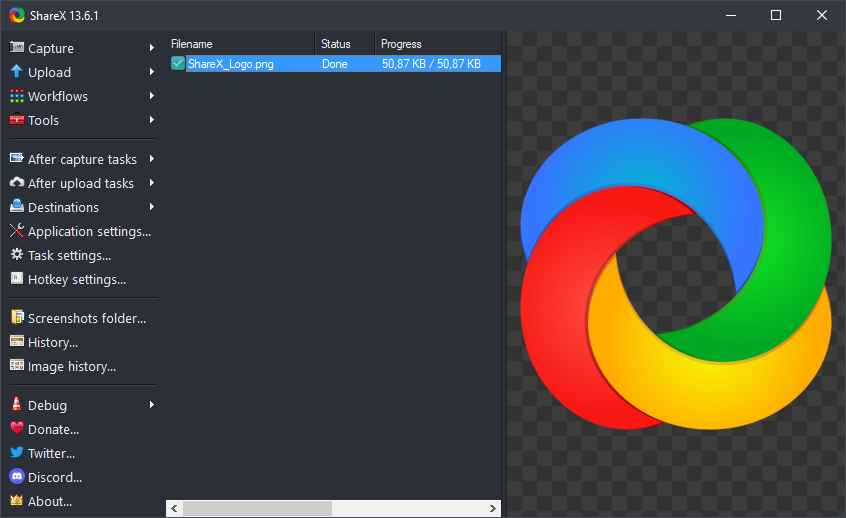 List view
02
No ads, lightweight, years of development, deep customization—mapped to how you ship work remotely.
New builds ship with each release. Start from the Download section on this page; full changelog for version history.
Hotkeys, remembered regions, after-capture tasks—fewer clicks for tickets and tutorials.
Chain actions using ShareX's Actions workflow docs.
03
Fullscreen, active window, monitors, region (transparent / light), scrolling capture, recording and GIF, auto capture—and a long after-capture task list.
04
Files, folders, clipboard, text, URLs; watch folders; after-upload steps. Custom uploaders for S3, GCS, R2.
Shorten, copy URL, QR, open in browser.
06
Patterns from forums and Discord worth copying.
Region → clipboard → private upload; screenshots in seconds.
Scrolling capture, OCR when copy is blocked, editor for redaction.
GIF capture, pin-to-screen, watch folders.
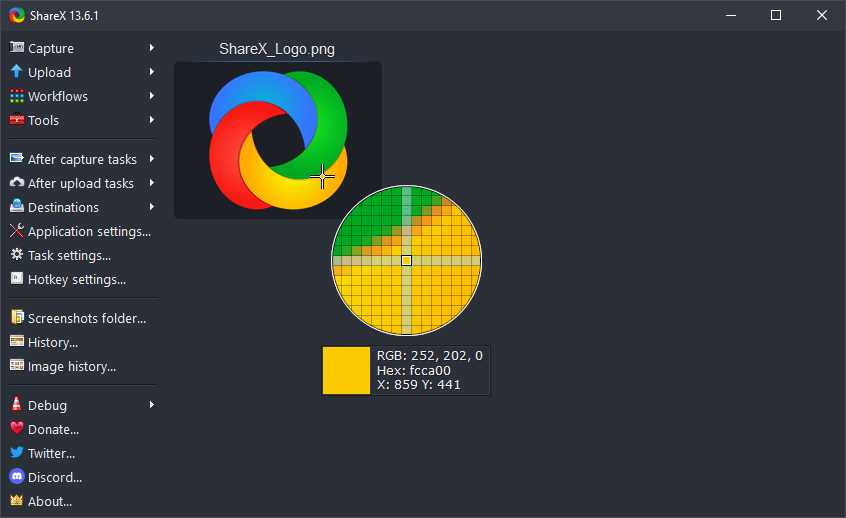
Color picker + ruler; saved regions for breakpoints.
07
Short fixes—back up settings first.
Prefer the Download section here and signed Windows installers only.
08
09
Grab the latest stable installer or portable build from the primary download listing linked below.
Choose a setup installer or a portable (unzip-and-run) package for Windows, depending on how you prefer to install apps.
Changelog · Dev builds (read the warnings first)
10 · Reference library
The sections above introduce ShareX at a glance. Everything below is additional material—different angles, checklists, glossaries, comparisons, and scenario notes—so you can search, skim, or read end to end. Content is independent of the short summaries higher on the page.
| Claim | Reality |
|---|---|
| "Scrolling capture always works." | Dynamic layouts, lazy images, and inner scroll panes often need manual segments. |
| "OCR is magic." | Contrast, font, and language packs heavily affect accuracy. |
| "Portable = safer." | Portable avoids installers but still needs the same trust in binary source. |
"The fastest screenshot is the one you never file—clipboard → upload → paste URL in the ticket. ShareX shines when the chain is boring and invisible."
Mixed scaling (100% laptop + 125% external) can shift coordinates. If region snaps feel off, log out once after display changes, verify Windows "Let Windows fix apps" settings, and prefer per-monitor captures when possible instead of spanning all displays.
ShareX can push captures as files, DIB bitmaps, or HTML fragments depending on task settings. Teams that mix Slack, Teams, and browsers benefit from testing which paste target respects transparency and which flattens to JPEG.
PNG for UI and text edges. JPEG when photos dominate and size caps matter. WebP where supported for smaller payloads. GIF for silent micro-demonstrations under a few seconds.
Daily standups, incident bridges, and async reviews all need visuals. Patterns: pre-upload watermark for internal-only shots, blur defaults for serial numbers, separate destinations for "public blog" vs "internal wiki," and a naming template that includes ticket IDs.
Trainers combine pin-to-screen references with GIF captures for click paths. Students benefit from consistent hotkeys written on a one-page cheat sheet. Record short clips when voice-over adds clarity; keep GIFs wordless to avoid oversized files.
Disable cloud upload tasks when handling credentials; use editor redaction before any outbound step.
Document which destinations are approved; rotate API keys; expire signed URLs when policy requires.
Strip EXIF when sharing externally; verify screenshot backgrounds for accidental PII in blurred areas.
Exclusive fullscreen can block standard GDI captures. Borderless windowed mode often cooperates better. If hotkeys stop firing, the game may be consuming input first—try different modifiers or pause briefly before capture.
Capture inside the guest session when possible; grabbing the host window may include scaling artifacts. Over RDP, expect compression smear on fast motion—pause video before region capture for crisp stills.
HDR content can look flattened in SDR screenshots. When fidelity matters, switch temporarily to SDR mode or capture within apps that tone-map consistently.
Adopt %y-%mo-%d_%task-style patterns, separate folders per client, and nightly cleanup scripts for temp captures. Consistency beats cleverness when teammates search shared drives.
High-contrast annotation, thick arrows, and step numbers help color-blind readers. Avoid red–green-only cues; pair color with labels. When sharing with screen-reader users, paste extracted OCR text alongside the image in tickets.
Compare components at 100% and 200% zoom; save paired regions; use color picker to verify brand tokens against spec sheets.
Capture dashboards with scrolling mode; redact customer rows before upload; prefer PNG for thin sparklines.
Sequence: timeline screenshot → log excerpt capture → config diff image → final summary GIF walking repro steps. Store artifacts in the ticket tool with hashed filenames to prove integrity later.
Discord and forums archive niche uploader templates. Search by host name plus "ShareX" before writing JSON from scratch. Credit authors when reusing configs; strip secrets before pasting snippets publicly.
Portable folders travel on USB or sync drives; remember to elevate when capturing elevated windows. Installed builds integrate slightly cleaner with default programs and shell context menus. Pick one primary install per machine to avoid conflicting hotkey databases.
Corporate proxies may require system trust stores; split-tunnel VPNs can route uploads unexpectedly. Test uploads on guest Wi-Fi before blaming ShareX. Time-skewed machines break signed requests—sync NTP.
Inline captures for drafts; OCR from PDF scans; pin reference paragraphs while typing.
Chain of custody notes; hash screenshots; avoid auto-upload for privileged material.
Archive UI versions; timestamped folders; combine plots side by side.
Read changelogs when updating; test scrolling capture on your top five internal web apps after browser upgrades; keep a "smoke test" checklist of one capture, one upload, one OCR run monthly.
Single-page apps that virtualize rows may only render visible DOM—scrolling capture might stitch blank gaps. Try pausing virtualization, exporting PDF, or capturing the print preview. For chat apps with inner scroll panes, capture each column separately and combine with the image combiner.
QR codes help workshop handouts; shorten URLs when pasting into slides. Regenerate QR if the destination URL changes—stale codes confuse attendees.
Built-in hash tools verify downloads match expectations. Useful when mirroring installers internally or proving a screenshot file was not tampered with after export.
When narration matters, prefer full screen recording with system and mic sources balanced. Mute notification sounds during captures meant for clients; use push-to-talk if the keyboard clicks leak into the track.
Select multiple files in history for re-upload or format conversion. Pair watch folders with consistent subfolder naming so automation scripts can glob predictable paths overnight.
Pre-record golden paths; keep live ShareX ready for prospect-specific questions; blur competitor logos in ad-hoc captures.
Redact account digits by default; store captures in restricted drives; never auto-upload spreadsheets with macros.
OCR accuracy drops on decorative fonts and vertical text. Install the right language packs; for mixed Latin and CJK pages, crop regions per script when results are noisy.
Recording and GIF encoding drain battery quickly. Prefer plugged-in power for long sessions; lower target FPS; pause captures when thermals throttle CPU.
Pixel-diff adjacent builds; capture network waterfall panels; annotate responsive breakpoints.
Emulator window captures; device frame overlays in editor; DPI-aware crops.
One-glance KPI boards; blur salary columns; scheduled weekly dashboard archives.
Prefer plain text logs for searchable archives when possible. Screenshots of terminal output lose copy-paste value—use text export or OCR only as a last resort. For large tables, export CSV instead of a giant PNG.
Mirror hotkeys across machines using exported JSON. Avoid chords that conflict with IDE defaults. Practice deliberate slowness when learning—speed comes from repetition, not overlapping bindings on day one.